|
|
|
Participate > Submission Guidelines1. Account RegistrationCreate an account on the platform. 2. LoginAfter registration, log in to the platform using your account credentials. 3. Submission of ContributionsTo submit your contribution:
Once the submission is completed, a confirmation email will be sent automatically.
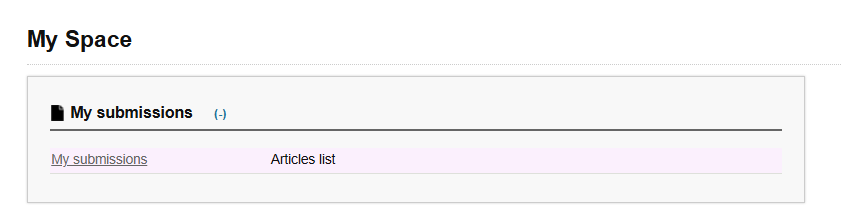
4. Checking Your SubmissionYou can monitor the progress of your submission at any time in My Space → My Submissions.
5. Submission StatusesEach submission may have one of the following statuses:
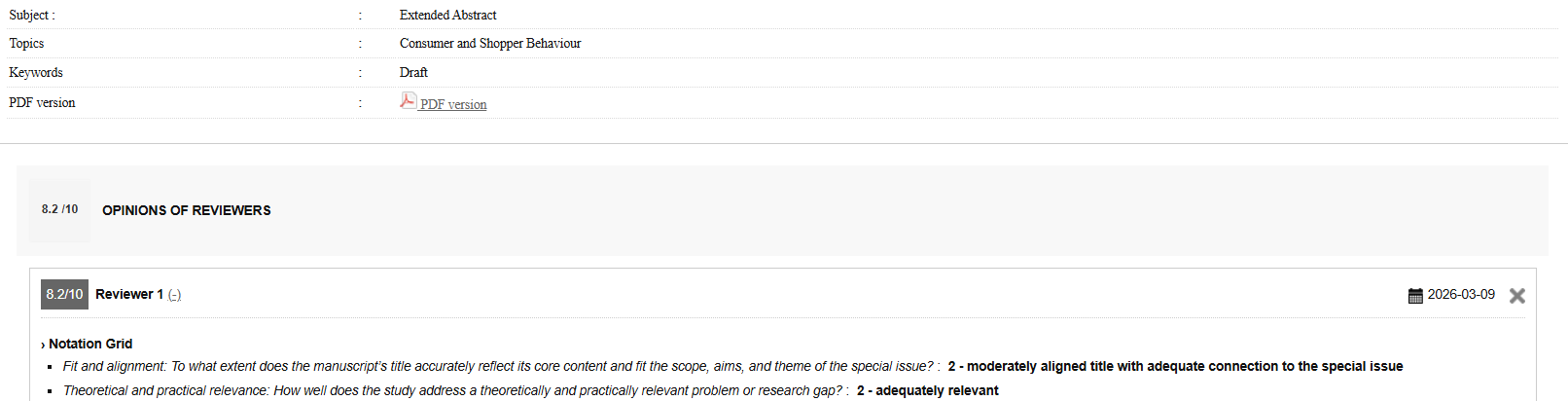
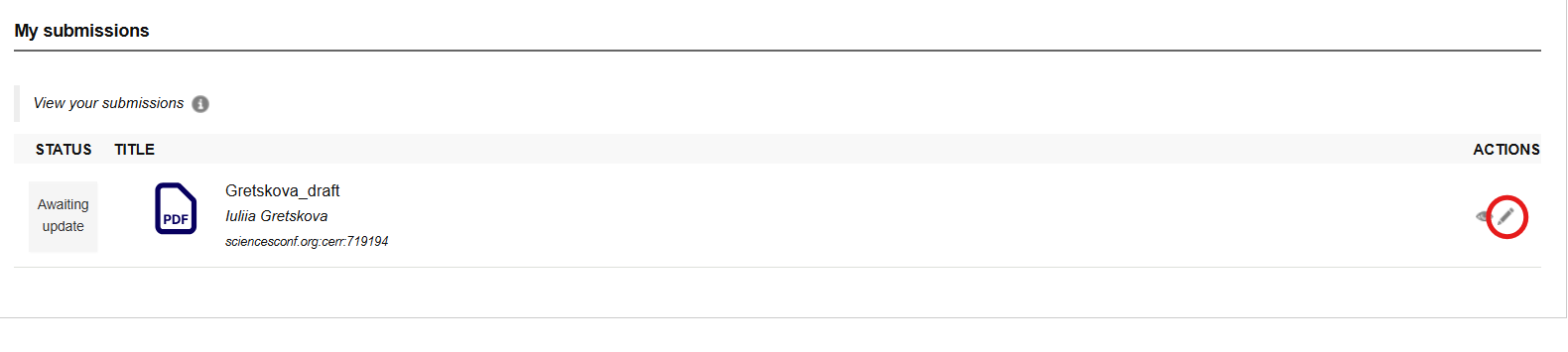
6. Reviewer FeedbackTo view reviewer comments, go to My Submissions and click the eye icon under the Actions column.
7. Updating Your SubmissionIf the status of your submission is Awaiting Update, click the pencil icon under Actions to upload a revised version. 8. Final DecisionAfter the review process, the conference coordinator will send a decision email, and the status of your submission will be updated accordingly. 9. PaymentIf your submission is accepted, you will be able to proceed with the payment of the conference fee. |